Why Download Instagram Reels Without a Watermark?
Instagram Reels have become one of the most popular short-video formats on the internet, and it's easy to see why. They're punchy, creative, and endlessly shareable. But if you've ever tried to save a Reel directly through Instagram's built-in feature, you've probably noticed the problem - that stubborn watermark stamped right across your video.
Whether you're a content creator repurposing your own videos, a marketer archiving campaign material, or simply someone who wants to save a funny clip to watch offline, that watermark gets in the way. A clean, watermark-free download looks far more professional and is simply more enjoyable to watch and share.
The good news? Removing the watermark doesn't require expensive software or technical skills. With the right free online tool, you can grab a crystal-clear copy of any public Instagram Reel in seconds.
Is It Legal and Ethical to Download Instagram Reels?
This is a fair question, and it's worth answering honestly. Downloading publicly available content for personal use - like watching offline or saving your own posts - generally falls within acceptable use. However, re-uploading someone else's content as your own, using it commercially without permission, or violating Instagram's Terms of Service is a different matter entirely.
Here's a simple rule of thumb:
- Your own content: Fully fine to download and repurpose however you like.
- Content with permission: If the creator has given you explicit permission, downloading and resharing is acceptable.
- Public content for personal offline viewing: Generally tolerated, but always check the creator's preferences.
- Commercial use without permission: Not acceptable - always seek proper licensing or consent.
Always credit original creators when sharing their work, and never misrepresent downloaded content as your own. Respecting creators' rights is what keeps the online community healthy and trustworthy.
What You'll Need Before You Start
Before diving into the step-by-step process, make sure you have the following ready:
- A device with an internet connection (phone, tablet, or desktop)
- The Instagram app or access to Instagram's website
- The URL of the Reel you want to download
- A free online downloader tool (we'll cover this below)
No app installations, no subscriptions, and no technical knowledge required. That's the beauty of using a well-built browser-based tool.
Step-by-Step Guide: How to Download Instagram Reels Without a Watermark
Follow these steps carefully and you'll have a clean, watermark-free video file on your device within about a minute.
Step 1: Find the Instagram Reel You Want to Download
Open Instagram on your phone or visit instagram.com on your desktop browser. Navigate to the Reel you want to save. You can find Reels on a user's profile, in the Reels tab, or in your feed.
Step 2: Copy the Reel's URL
On mobile: Tap the three-dot menu (⋯) at the bottom right of the Reel, then tap "Copy Link". The URL is now in your clipboard.
On desktop: Click the three-dot icon at the top right of the post, select "Copy Link", or simply copy the URL directly from your browser's address bar.
The URL should look something like: https://www.instagram.com/reel/ABC123xyz/
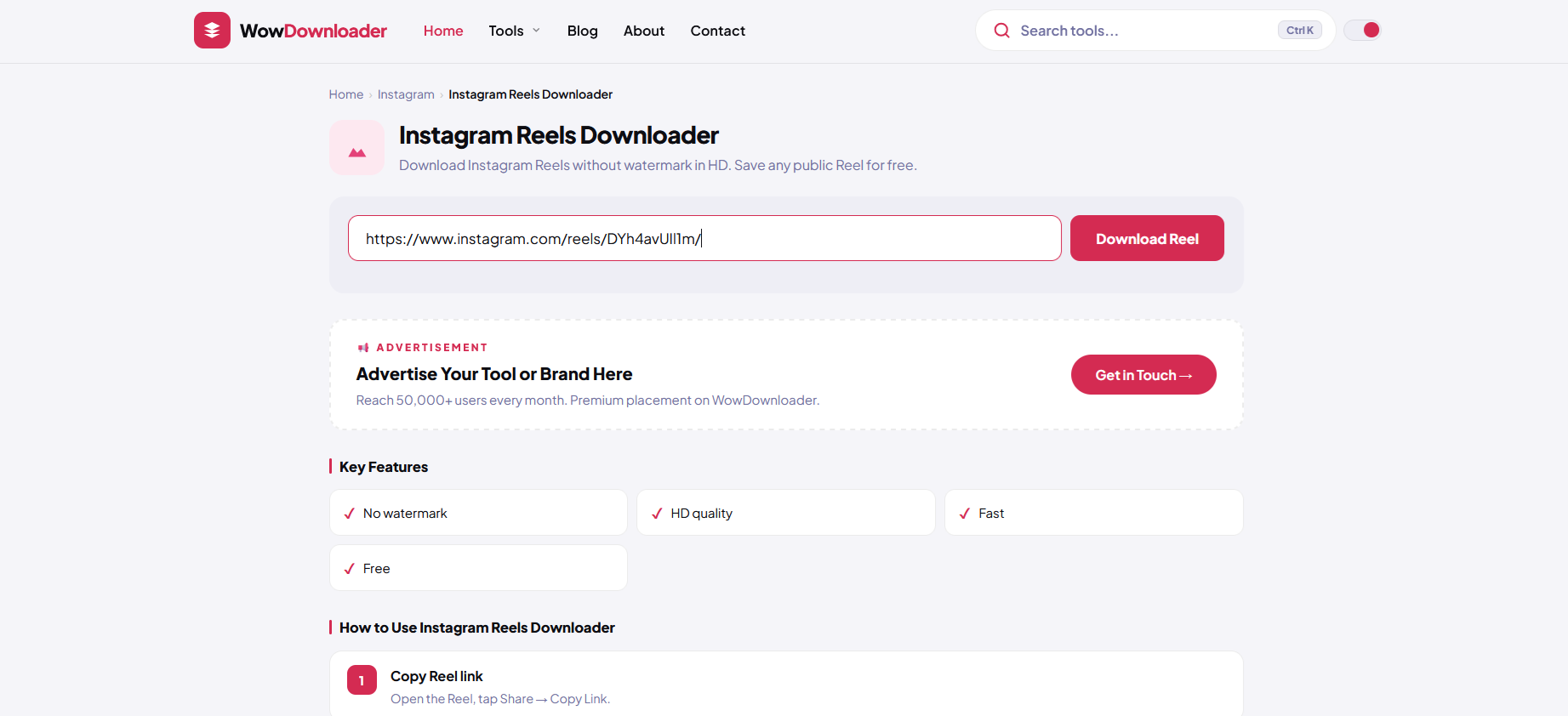
Step 3: Open WowDownloader
Visit WowDownloader in your browser. It's a free, web-based tool that supports Instagram Reels, TikTok videos, YouTube clips, Spotify tracks, and much more - all without needing to install anything. The interface is clean and straightforward, designed to get you to your download as quickly as possible.
Step 4: Paste the Reel URL
You'll see a large input field front and center on the homepage. Paste the Instagram Reel URL you copied in Step 2 into that box. Double-check that the full link is pasted correctly - a partial or broken URL is the most common reason downloads fail.
Step 5: Click the Download Button
Hit the "Download" button and give the tool a few seconds to process the link. It will fetch the video data directly from Instagram's servers and prepare your file.
Step 6: Choose Your Preferred Quality and Save
Once processing is complete, you'll be presented with download options. Select your preferred resolution - typically HD (720p or 1080p) is available for most Reels. Click your chosen format and the video will save directly to your device's default download folder.
On mobile, you may be prompted to confirm the download or choose where to save the file. On most Android devices it saves to your Downloads folder; on iOS, it may open in your browser's download manager or save to Files.
Downloading Instagram Photos and Carousels Too
Did you know the same process works for Instagram photos, carousel posts, and Stories? If you paste the link to a photo post, the tool will extract and offer the image in its highest available resolution - no compression, no watermarks.
For carousel posts (multiple images or videos in a single post), a good downloader will list all available media from that post so you can download individual items or grab everything at once. This is incredibly useful for archiving your own content or saving inspiration for mood boards.
Tips for Getting the Best Results
A few practical tips to make sure every download goes smoothly:
- Only download public content. Private account content is not accessible to downloading tools, and attempting to bypass this is both unethical and technically futile.
- Use the full link. Make sure the URL includes the complete path (e.g., /reel/ segment). Shortened or partial links may not work correctly.
- Check your internet connection. A slow or unstable connection can interrupt the download mid-process. If a download fails, simply retry.
- Avoid third-party apps that request your login credentials. Legitimate downloaders like WowDownloader never ask for your Instagram username or password. If a tool requests this, leave immediately.
- Download on Wi-Fi when saving HD video. Reel files in high resolution can be 50-150MB, so downloading over mobile data may use significant data allowance.
Common Issues and How to Fix Them
Even with the best tools, things occasionally go wrong. Here are the most frequent problems users encounter and how to resolve them quickly.
"Invalid URL" or "Could Not Fetch Video" Error
This almost always means the URL wasn't copied completely, or the Reel has been deleted or set to private since you copied the link. Go back to Instagram, re-copy the link, and try again. Make sure the account is public and the post still exists.
Download Starts But File Won't Open
This can happen if the download was interrupted before completing. Delete the partial file and download again on a stable connection. Also confirm your media player supports the MP4 format - most modern players do.
Video Quality is Lower Than Expected
Downloading tools can only retrieve the quality that Instagram's servers make available. If the original uploader posted a low-resolution video, the download will reflect that. There's no way to artificially increase the source quality.
The Page Keeps Loading Without Results
Try clearing your browser cache, switching browsers, or disabling browser extensions (especially ad blockers, which can sometimes interfere with download tools). If the issue persists, try from a different device or network.
iOS Isn't Saving the File to Camera Roll
Safari on iPhone handles downloads differently. After clicking download, you may need to tap the download icon in the browser toolbar, then open the file and use the share icon to "Save Video" to your Camera Roll. Alternatively, use a third-party browser like Documents by Readdle for smoother file management on iOS.
Why WowDownloader Stands Out
There are dozens of online video downloaders out there, but quality varies wildly. Many are cluttered with deceptive ads, require you to jump through multiple pages, or simply don't deliver consistent results. WowDownloader is built with simplicity and reliability in mind - paste a link, get your file. It supports an impressive range of platforms beyond Instagram, including TikTok, YouTube, Facebook, Twitter/X, Spotify, and more, making it a genuinely useful all-in-one bookmark for anyone who regularly saves online content.
The tool is entirely browser-based, meaning nothing is installed on your device and there's no account to create. Your download history isn't stored, keeping your activity private.
Frequently Asked Questions
Can I download Instagram Reels on my iPhone?
Yes. Using a browser-based tool works on iOS, though the file-saving process requires an extra step. After the download completes in Safari, tap the download icon in your browser toolbar, open the video file, then tap the share icon and choose "Save Video" to add it to your Camera Roll. The whole process takes under a minute once you're familiar with it.
Will the downloaded Reel have Instagram's watermark on it?
No - that's the whole point. Unlike Instagram's native "Save" or screen-recording approach, a proper downloader retrieves the original video file directly, which is clean and free of any platform watermark or overlay text.
Can I download Reels from private Instagram accounts?
No. Downloading tools can only access publicly available content. Private account posts are protected and cannot be fetched without authentication. If you want to save content from a private account, you'd need to be a follower and use screen recording (which will capture any on-screen overlays).
Is there a limit to how many Reels I can download?
Most free web-based tools, including WowDownloader, don't impose strict download limits for normal personal use. However, sending an excessive number of rapid requests can occasionally trigger rate limiting. For typical use - downloading a handful of videos at a time - you're unlikely to encounter any restrictions.
Does downloading a Reel notify the original creator?
No. Instagram does not notify users when their public content is accessed via a third-party URL-based tool. The process is entirely silent from the creator's perspective, similar to how viewing a post generates no specific notification to the account owner.